
Download Eclipse
Windows or Linux, 64-bit, about 60 MB, Java included. It installs without administrator rights and does not change your Beyond All Reason install. Apple Silicon Macs get Eclipse with the game engine built in.
Linux: unpack the archive, then run Eclipse/bar-map-launcher.sh (Java is inside, nothing to
install). Eclipse finds the game where BAR's launcher keeps it, ~/.local/state/Beyond-All-Reason
(the Flatpak: ~/.var/app/info.beyondallreason.bar/.local/state/Beyond-All-Reason); joining a room
may download an engine, which needs 7z (package p7zip-full on Debian and Ubuntu).
Before you start
What you need
- Nothing else to install first. If Beyond All Reason is not on your computer, Eclipse downloads it on its first start — free, from the BAR team's own servers, about 2.5 GB — and keeps it up to date. If BAR is already anywhere on your PC, Eclipse finds it and uses it. On a Mac BAR has no version of its own, so Eclipse for Mac brings the engine and downloads the game itself.
- 64-bit Windows, Linux, or an Apple Silicon Mac (macOS 13.3 or newer).
- A window of at least 1280×720. Eclipse opens full screen; F11 switches to a window.
- About 80 MB of disk for Eclipse itself, plus a one-off 37 MB download of tree and rock sets the first time you generate a map with biome trees. Generated maps are 15–80 MB each and land in your BAR maps folder.
- Memory. The launcher sits in about a gigabyte, but map generation starts a separate process that can take several gigabytes for a minute.
- Java is not a requirement — a Java runtime ships inside the download.
Install and first game
No Beyond All Reason yet? Nothing to do
You do not need to install the game first. When Eclipse starts and finds no Beyond All Reason on your PC, it installs it by itself: the header reads Installing BAR…, then Downloading BAR NN% (first time) — about 2.5 GB from the BAR team's own servers, a few minutes on a fast connection. If you already play, Eclipse uses your install and never touches your BAR account.
On a Mac, skip this step. BAR has no macOS version and nothing to install there; Eclipse for Mac is the game's only way onto a Mac — it includes the engine and fetches the game on its first start.
Download the installer
One file, about 70 MB, with everything inside. Open it: it installs in a few seconds, with nothing to click through, and starts Eclipse by itself.
Download for WindowsPrefer to unpack it yourself? There is a zip instead. If your browser or network blocks the download, that is because it comes over plain HTTP from an IP address — see troubleshooting.
On a Mac: Eclipse is the whole install
Apple Silicon (M1 or later), macOS 13.3 or newer, about 145 MB. Unpack, drag Eclipse.app into Applications, then open it once through System Settings → Privacy & Security → Open Anyway (it is not notarized). Beyond All Reason has no Mac version, so there is nothing else to install: Eclipse brings its own build of the game engine and downloads the game itself, about 2.3 GB, before the first game. Rooms work like on Windows, the engine version is the same.
The engine in the Mac download is the Recoil engine, free software under the GNU GPL (version 2 or later), built for Apple Silicon from Recoil and its Apple Silicon port. Its complete source code, with every change made for this build, is available on request from [email protected].
Download for MacRun it, and click through the Windows warning
Windows SmartScreen will say the publisher is unknown, because the file is not code-signed. Click More info, then Run anyway.
You will not be asked for an administrator password — Eclipse installs into your own user folder,
at %LOCALAPPDATA%\NeroxisLauncher.
Watch it install itself
A small window titled Installing Eclipse for Beyond All Reason walks through Connecting… → Downloading… N of M MB → Checking the download… → Unpacking… → Starting the launcher…
The check in the middle is the important one: the package's signature is verified against a key built into the installer, and the download is rejected if the hash does not match.
First start: say yes to the shortcut
Eclipse asks once whether to create a desktop shortcut, and puts Eclipse on your desktop if you say yes. Look at the top right of the window: it should read ● Beyond All Reason found. If it says the data folder was not found, jump to troubleshooting — nothing will start until that is fixed.
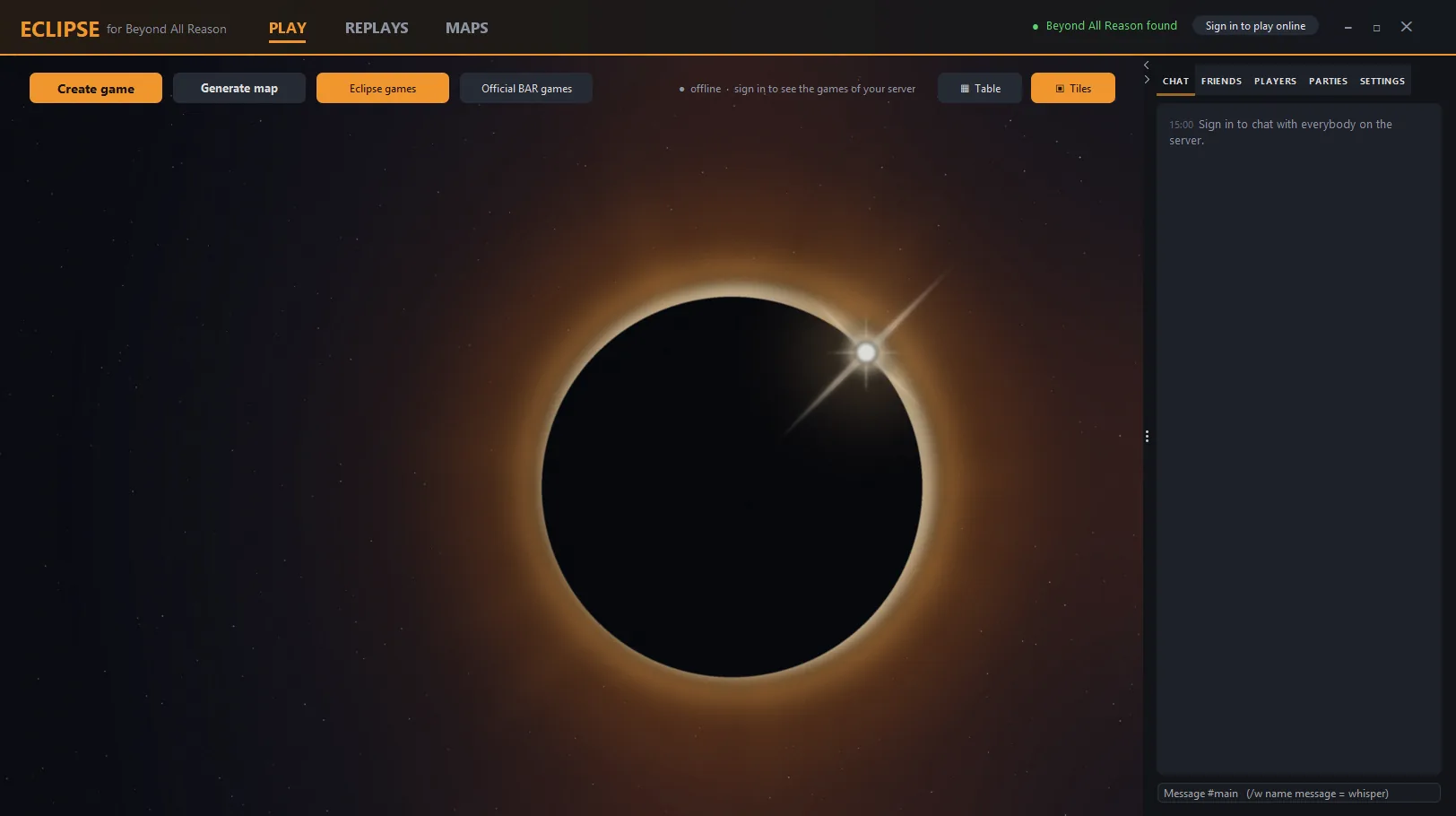
Make your first map and play it
- On the PLAY page, click Create game.
- In the left column pick Offline skirmish vs AI.
- Leave ★ Generate map selected at the top of the map list.
- Open the gear beside it if you want to choose the format, size, style or biome — or leave it alone for a 4v4 on a sensible size.
- Click Start skirmish.
The map is built in a few seconds (about 7 for a 16×16), written into your BAR maps folder, and BAR starts on it. The first time, Eclipse also downloads the 37 MB of tree and rock sets — that happens once.
Make an account to play with other people
- Click Sign in to play online at the top right, then Create account.
- Pick a user name (2–20 letters, digits or
_), an email address, and a password of at least 6 characters. Use a password you do not use anywhere else — the connection is not encrypted yet. - Playing online is free, with no time limit. Nothing to enter, no card. One account per person.
Eclipse stores the login token, never your password. You can turn off Stay signed in on this computer if you would rather type it every time.
Play a game on the server
- The Eclipse games toggle shows the rooms on this server. Click one to join, or use Create game → Online game → Create to open your own.
- In the room: pick a team, add AIs if you want, set the start boxes from a preset or drag them on the minimap, and press Ready.
- Everything else downloads by itself while you wait — the map, the game version and the engine version. Watch for ✔ Map Ready, ✔ Game Ready and ✔ Engine.
- The host presses Start, and Eclipse launches BAR into the game for you.
Updating
Eclipse updates itself. It checks on every start, and when a new version is ready a green bar appears with Restart to update. One click and it swaps itself over.
Do not re-download the installer to update. Running the exe again on a working install just starts the launcher.
Where everything lives
Eclipse itself: %LOCALAPPDATA%\NeroxisLauncher — the launcher, its Java runtime,
your settings and the downloaded tree sets.
Generated maps go into your BAR data folder under maps\, as
Eclipse_Mapgen_<code>.sdz files, so BAR itself lists them too.
Uninstalling
Windows: Settings → Apps → Installed apps → Eclipse → Uninstall. It removes the launcher, its Java runtime and its shortcuts. If you used the zip instead, delete its folder.
Maps it generated stay in your BAR maps folder until you delete them — from the MAPS page, or by hand.
The zip, if you prefer
Same thing without the installer: unzip it anywhere and double-click
bar-map-launcher.bat inside the folder. Note that this route does
not check any signature — the installer is what does that.
Troubleshooting
Not answered below? Ask in the Eclipse Discord (#help) or use Report a Bug inside the launcher.
It says the BAR data folder was not found
%LOCALAPPDATA%\Programs\Beyond-All-Reason\data. If you installed BAR somewhere else,
either set a BAR_DATA environment variable pointing at that data
folder, or type the path into the BAR data folder field — it is in
Create game, in the Map generator column, behind the gear icon.